Planning a company Christmas party: a step-by-step guide

Marc Blindenbacher
27.10.2026
•
8
min


In Oniva, you can create campaigns and send them to various target audiences. Here is how you can use campaigns effectively.

Oniva campaigns are used to send targeted messages to a defined group of contacts. Unlike notifications, campaigns are sent to multiple contacts simultaneously and are not tied to an action such as booking an event. Instead, they are either sent directly or scheduled to be sent to all recipients of the Campaign.
Campaigns can be sent either as part of an event (event invitation, reminder, e-ticket dispatch, thank-you email, etc.) or independently of events through a standalone campaign group. Standalone campaign groups are not available for all licence models but can be activated as an add-on. Event campaigns are available in all licence models.
You can send campaigns as either emails or SMS. Note that for SMS campaigns, the contact's mobile phone number must be stored, and SMS can only be sent as plain text.

Once you have created a campaign, you can customise it under the options menu. The display (logo, brand colour, and font), email template, available languages, and the sender of the campaign are inherited from the event settings and can be adjusted in the campaign settings as needed.
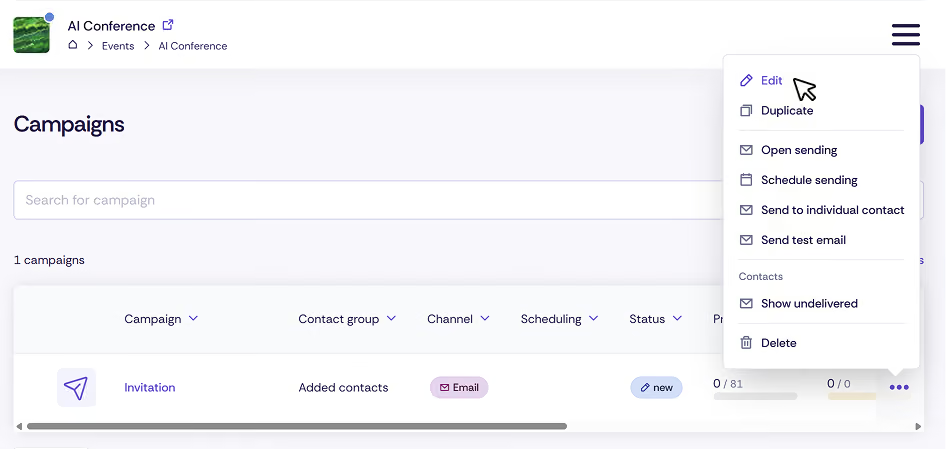
In the campaign editor, you have various layout and content options available. These can be dragged and dropped into the campaign and sorted as needed.
💡 Tip: To place a contact on a button, an email address can be linked. The email address in the link field must be preceded by 'mailto:', e.g., 'mailto:support@oniva.events'.
💡 Tip: The personal event link is an individual link for each contact. When the contact is invited through the personal event link, all imported information in the registration form is pre-filled. If a contact is already registered, the personal event link will take them back to their personal booking. For online events, it is recommended to send the personal event link shortly before the event as a reminder so that participants can easily access the virtual event and check in digitally. See article on personal event link.
If a personal link has been set, a notice is displayed by default. This can be deactivated or adjusted if needed.
Placeholders allow you to insert personalised content into your campaigns. You can use any fields configured on the authorisation group in the registration form. Ensure that you use the same identifier for different authorisation groups so that the variable works across multiple groups.


The "Formal Salutation" applies the contact's salutation based on their recorded gender. This requires the gender of the contact to be known (e.g. through the import of gender information: M/F). If the gender is not known, a neutral salutation is used automatically.
In event campaigns, the following automated contact groups can be selected as recipients for campaigns. These contact groups are based on the current status of the contacts in the event and are automatically generated from the existing event contacts:
Additionally, both campaign groups and event campaigns can create custom contact groups. See the article on contacts for more information.
Once your campaign is ready, you can send it. You can choose between immediate sending, scheduled sending, or sending a test email. All three options can be accessed via the action menu (···) → open.
👉 Note: If no contact is specified for a test email, the button to download e-tickets or the personal event link will not be active.

👉 Note: Sending with the status In queue starts automatically as soon as your campaign can be sent by the system.
Resend to a new contact
Resend to a contact who has already received It
In some cases, a campaign needs to be triggered again for a guest who has, for example, lost their invitation. To do this, simply open the campaign and trigger it for a specific contact via the "Send to individual contact" menu item.
The open rate of your campaign depends primarily on the quality and freshness of your contacts. For internal events, for example, you can generally expect a higher open rate when using up-to-date employee lists than for customer events using CRM contacts who may have been inactive for months.
Please also note that open rates do not always reflect all actual opens. If contacts block images from loading, their opens may not be tracked.
The following open rates can serve as a guideline:
Campaign groups are standalone newsletter series that function independently of events – e.g. for department or product newsletters. Event campaigns are tied to a specific event (invitations, reminders, thank-you messages, etc.) and are available in all licence models. Standalone campaign groups can be activated as an add-on depending on the licence.
A generic booking confirmation is pre-configured for all events, which is sent to the guest by email after the booking has been completed, unless this has been deactivated in the workspace. The template per event can be customised under Settings → Notifications.
Many email programs block images by default for privacy and security reasons. Since images are often loaded from external servers, they could be used for tracking.
Why doesn't image downloading always work?
Solution:
With Oniva campaigns, up to 40,000 emails can be sent per 24 hours per address. If an address is used for multiple newsletters, this limit applies across all campaigns. For smooth sending, we recommend sending a maximum of 15,000 to 20,000. In some cases, sending such large volumes can result in the send being interrupted (status incomplete). If a send is interrupted, it can be restarted via "open resend". The campaign will only go to contacts who have not yet received the campaign.
Oniva sends a maximum of 60 campaigns per minute. This number includes the sending of all campaigns in an instance (excluding notifications such as booking confirmations).
There are various factors along the email sending process that can have an impact on the receipt of messages. In individual cases, there may be interruptions between senders and recipients. Interruptions cannot be completely ruled out, as it is not possible to directly influence the systems and settings of the recipients. Full inboxes, security settings or filter rules can lead to individual emails not being delivered. These problems are usually temporary and must be resolved by the recipient themselves. If your email delivery has an Incomplete status, you can use the subsequent sending feature to initiate a retry.
No. Sending campaigns with attachments is not possible (and is also not recommended due to potential spam filters!). Alternatively, attachments can be uploaded to Oniva or other platforms and linked, for example, as a button.
No. These buttons are fixed and cannot be disabled or renamed.
Discover exciting articles about creating unforgettable events.