The German MICE Market 2025: New Record in Participants

Marc Blindenbacher
July 29, 2026
•
7
min


Oniva allows different permission levels to be assigned to different accounts. The overview below describes the various account roles and their specific permissions.

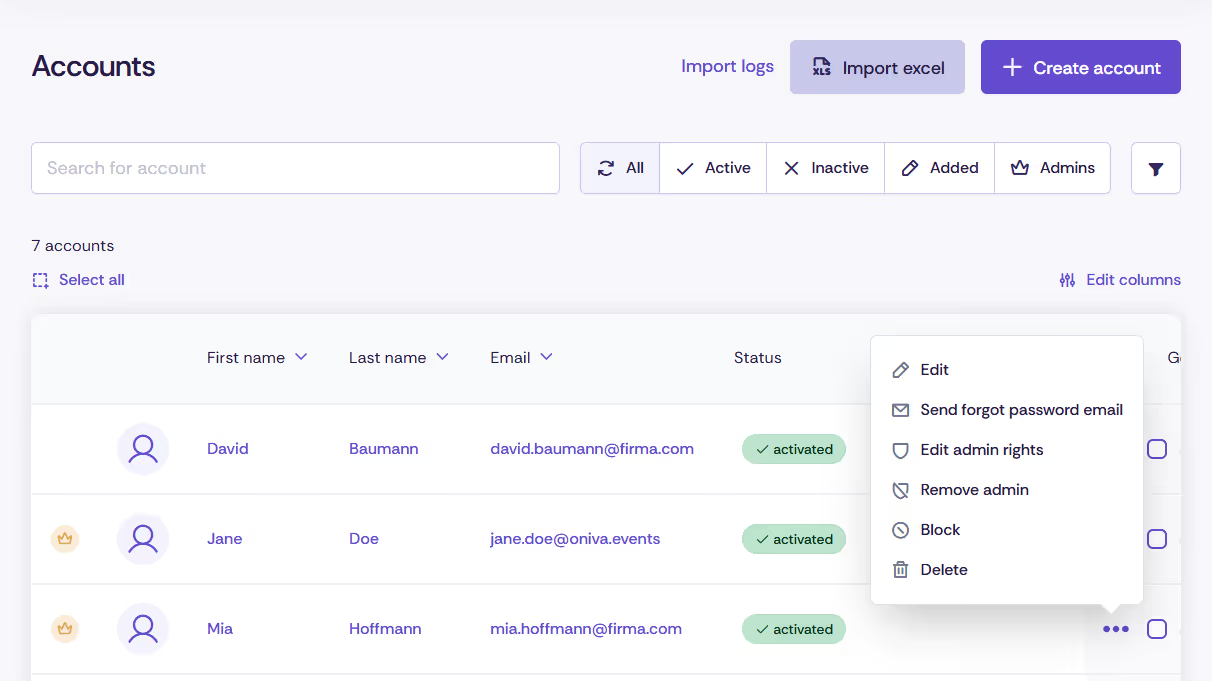
Accounts can be created in Oniva for all internal members of an organization, such as employees or members. Any number of accounts can be created.
Users with an account can log in and access their existing bookings.
Events can also be configured so that only logged-in users are allowed to book. This increases security compared to personal links, which could be shared.
💡 Tip: Learn how to add users to Oniva in the article edit accounts.
Existing accounts can be activated as admins in the admin area. Activated admin accounts can be assigned as event admins for events created by other admins.
Event admins have full permissions for the respective event:
Important:
Read-only access can be granted to any account for an event, whether admin or not. With read access, users can view contact and booking lists but cannot make any changes.
Once an account is activated as an admin, it has access to the basic admin functions.
In addition, admins can be assigned admin roles that unlock specific permissions.
Admin accounts with permission to create events can create new events within their workspace. In these events, they are automatically assigned as the responsible event admins. Additional existing admins can be added to grant them access as well.
Workspace admins can:
This allows them to maintain oversight and ensure smooth operations.
Campaign group admins can:
This ensures that campaigns are communicated correctly and on time.
The account management permission allows admins to:
With the additional permission to manage admin rights, admin privileges can be assigned at all levels.
Tenant admins have the highest permission level in Oniva.
In addition to the permissions of an event admin, they can:
This gives them full control over the platform and ensures that all activities run smoothly.
Discover exciting articles about creating unforgettable events.