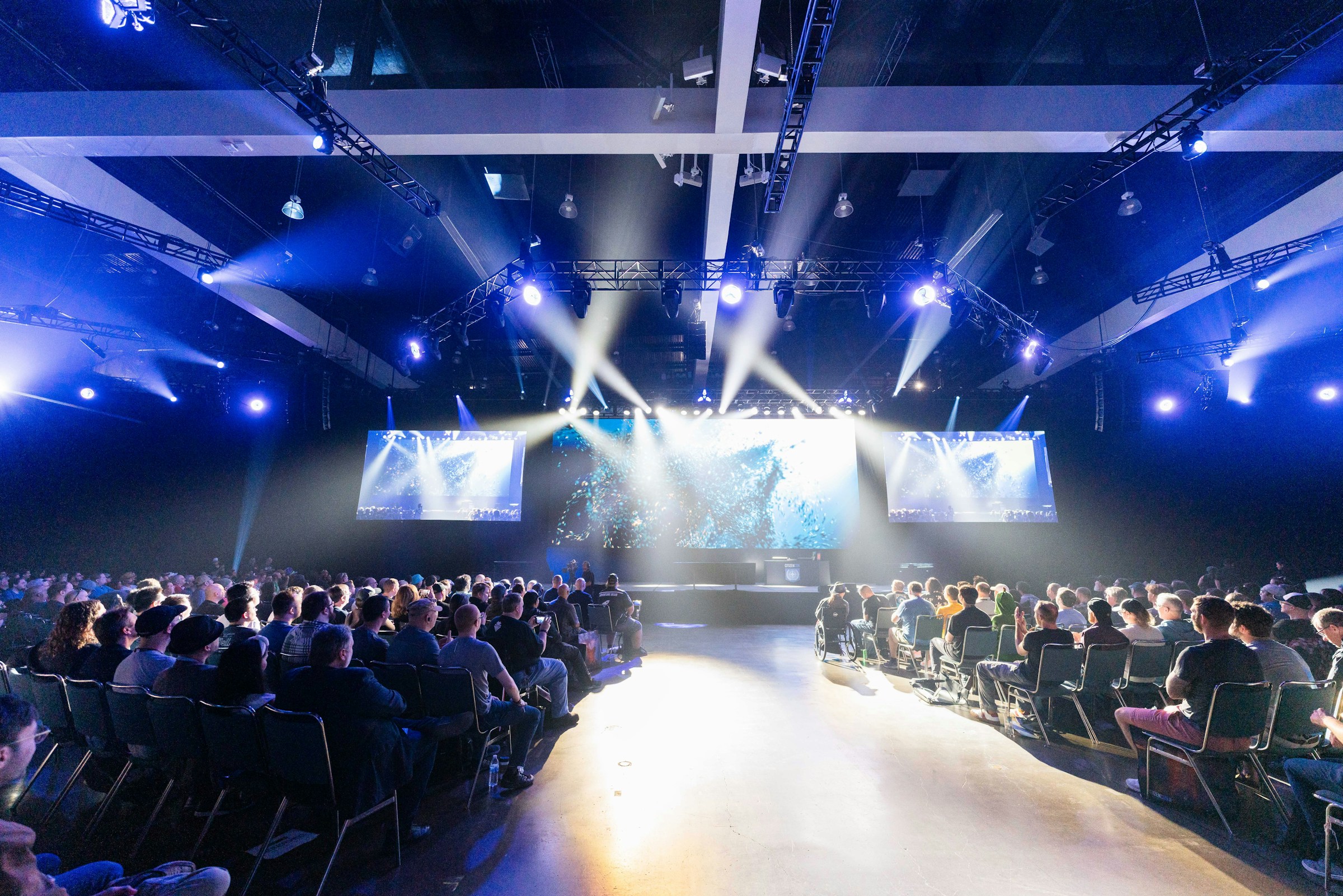
The German MICE Market 2025: New Record in Participants

Marc Blindenbacher
July 29, 2026
•
7
min


This article lists all the content you need to create an event in Oniva. Certain resources might already be saved in the workspace and thus may not be needed (e.g., branding elements).

💡 Tip: The following article shows where these contents can be entered in Oniva to design the event website: Designing the event website.
✅️ Event URL endpoint (the last part of the URL, https://.../event/'endpoint')
✅️ Logo in .PNG format without background (transparent)
✅️ Title Image (key visual), ideal size 2,712x986 or 1,650x1,100 pixels (See article on images)
✅️ Registration deadline (per booking option or general)
✅️ Branding colour, secondary branding colour, accent background colour
✅️ Event title
✅️ Name of the organiser or organisation, logo & email address
✅️ Date including time, location including address or online link
✅️ Event website text in required languages (See article on multilingual events)
✅️ Team mailbox for receiving notifications
✅️ Booking options, including respective titles, time, location, and possibly price (see article on booking selection)
✅️ Capcities (per booking option or general) (see article on capacities)
✅️ Should participants be able to cancel bookings themselves?
✅️ Data query for participants
✅️ Guest list in Excel format including at least email address, first name and last name (if invited via Oniva)
✅️ Privacy policy as a .PDF in all languages (See article on privacy policy for event registrations)
✅️ Invitation text for the email invitation to guests (if invited via Oniva) (see article on event invitations)
✅️ Text of the booking confirmation in all languages (see article on notifications)
✅️ Text of the deregistration confirmation (declining the invitation) in all languages
✅️ Text of the cancellation confirmation (deleting a confirmed booking) in all languages
💡 Tip: The logo, branding colour, team mailbox, and privacy policy are automatically taken from the workspace. Set up your workspace so that you only need to adjust these settings for events that differ (see Setting up a new workspace).
Still unsure how to plan your event with Oniva? In the following article, you’ll find valuable tips for event planning – from guest data and data protection to programme and check-in, as well as badges, tickets and communication.
Discover exciting articles about creating unforgettable events.