Articles by topic

Online Events & Live Streaming

Table of contents

Last updated:
March 10, 2026

Group bookings

With group bookings, participants can register as a team for a booking option. This feature is particularly suitable for events such as hackathons, workshops, sports events, or competitions where groups participate together.

Screenshot of group bookings.

Group bookings

Group bookings are activated directly within a booking option and allow participants to join an existing team or create a new one.

Once the maximum number of groups has been reached, no new teams can be created. A booking option can also no longer be booked when both of the following conditions are met:

  • the maximum number of groups has been reached, and
  • all groups have reached their maximum group size.
Event booking form showing available groups, current group sizes, and a selection of player positions.


Gruppenbuchungen aktivieren

Um Gruppenbuchungen für eine Buchungsoption zu aktivieren:

  1. Navigate to booking selection.
  2. Open the booking option for which group bookings should be enabled.
  3. Open the advanced options section.
  4. Enable the Group bookings toggle.
  5. Define:
    • Maximum group size
    • Maximum number of groups
  6. Activate the event.

Participants can now register for this booking option as a team.

Configuration page for group bookings with the feature enabled and fields for minimum and maximum numbers of groups and people per group.


Process for participants

When group bookings are enabled, participants can choose to:

  • join an existing team, or
  • create a new team.

When creating a new team, the group responsible can decide whether the team is:

  • public – other participants can freely join, or
  • private – joining is only possible via invitation.
“Edit group” dialog with fields for the group name and description and an option to mark the group as public.

The team responsible can then send invitations to other participants so they can join the team.

For private teams, registration is only possible via invitation.

Dialog for inviting participants to a group by entering an email address and sending an invitation.


Manage groups

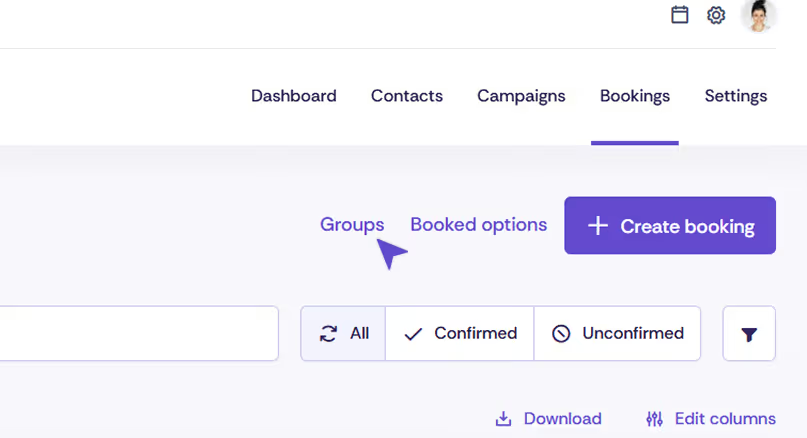
As an admin, you can view and manage all teams within the event.

  1. Open the Bookings tab.
  2. Switch to the Groups section.

There you can:

  • view existing teams
  • edit teams
  • view team members
Admin interface of the event platform with the “Groups” tab open in the “Bookings” section, showing filters and a “Create booking” button.
Download

Was this article helpful?

Thank you very much! Your feedback has been recorded.
Huch! Beim Absenden des Formulars ist etwas schief gelaufen.

Helpful information for event managers

Discover exciting articles about creating unforgettable events.

Didn't find an answer?

If you couldn't find the information you were looking for, our support team is happy to help. Create a ticket, and we will get back to you as soon as possible.
Time icon
Support hours
Monday to Friday, 08:00 to 17:00(excluding public holidays in the city of Zurich)