The German MICE Market 2025: New Record in Participants

Marc Blindenbacher
July 29, 2026
•
7
min


Connect Oniva to HubSpot and manage contacts, registrations and attendance data directly in your CRM without any manual steps in between.

The HubSpot integration connects your HubSpot account bidirectionally with Oniva:

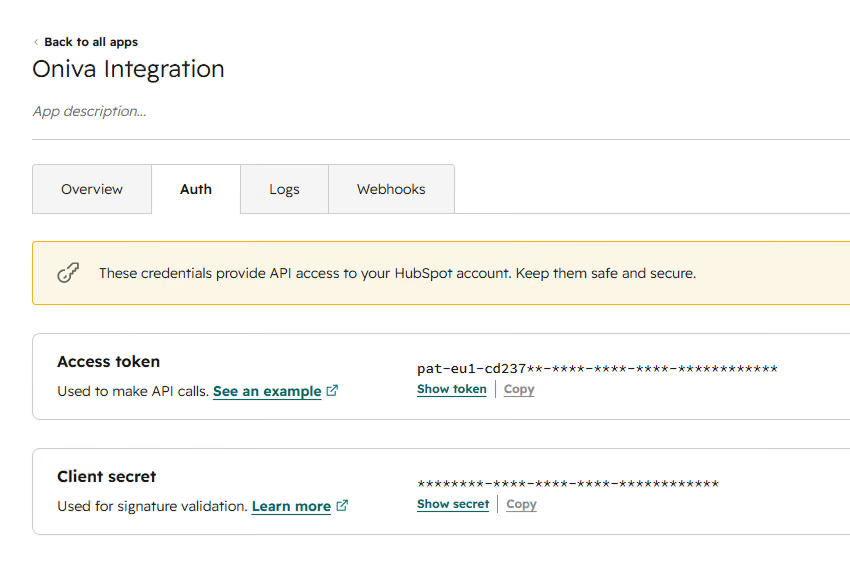
Enable at minimum the scopes that match the features you are using. Only activate the permissions you actually need.
For importing contacts from HubSpot into Oniva:
crm.lists.readcrm.schemas.contacts.readcrm.objects.contacts.readAdditionally for exporting event data from Oniva (Marketing Events):
crm.objects.contacts.writecrm.objects.marketing_events.readcrm.objects.marketing_events.writeAdditionally for exporting personal event links (Custom Object, HubSpot Enterprise only):
crm.schemas.custom.readcrm.schemas.custom.writecrm.objects.custom.readcrm.objects.custom.write👉 Note: Missing scopes can be added to an existing app at any time without creating a new one.
HubSpot offers both options. For a stable, uninterrupted connection, we recommend a static token. It does not expire and does not need to be renewed. If you use a rotating token for security reasons, remember to update the token in Oniva immediately after each rotation – otherwise the connection will be interrupted.
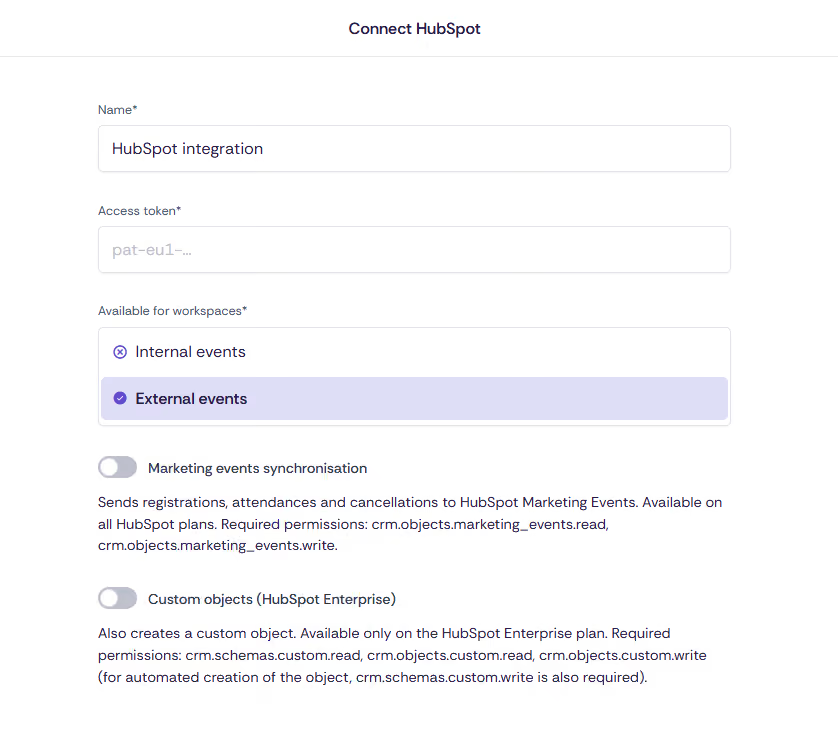
⚠️ Important: The functions selected here must be covered by the corresponding scopes of your access token (see Step 1). If you activate Custom Objects without having granted the custom object scopes, the transfer will fail.
The connection must also be enabled at workspace and event level.
Once activated, HubSpot contacts will be available for contact import within the event. If Marketing Events sync has also been activated, event data will be automatically transferred to HubSpot from this point onwards (see "Export" section).
Once the app connection is activated at event level, you can import contacts from a HubSpot list directly.
HubSpot contacts are not automatically kept up to date in Oniva. If further contacts have been added to the HubSpot list during the event, or existing contacts have been updated, the import must be repeated manually.
👉 Note: This process can be repeated at any time without duplicating existing contacts. Existing contacts will be updated; new contacts will be added.
In addition to contact import at event level, you can also create HubSpot contacts as accounts (user accounts) in Oniva. This is useful for granting people access to Oniva.
After the import, the accounts are available in Oniva. Using "Select all" and the "Activate accounts" action, all users will receive an activation email to set up their account.
If Marketing Events sync is activated (Step 2) and the app connection is enabled at workspace and event level (Step 3), Oniva transfers event data to HubSpot automatically. No manual export is required.
The transfer happens automatically as soon as a booking is created in Oniva or a participant's status changes. Unlike the import (manual), Marketing Events sync is a continuous, event-driven process.
💡 Tip: Customise the HubSpot contact view
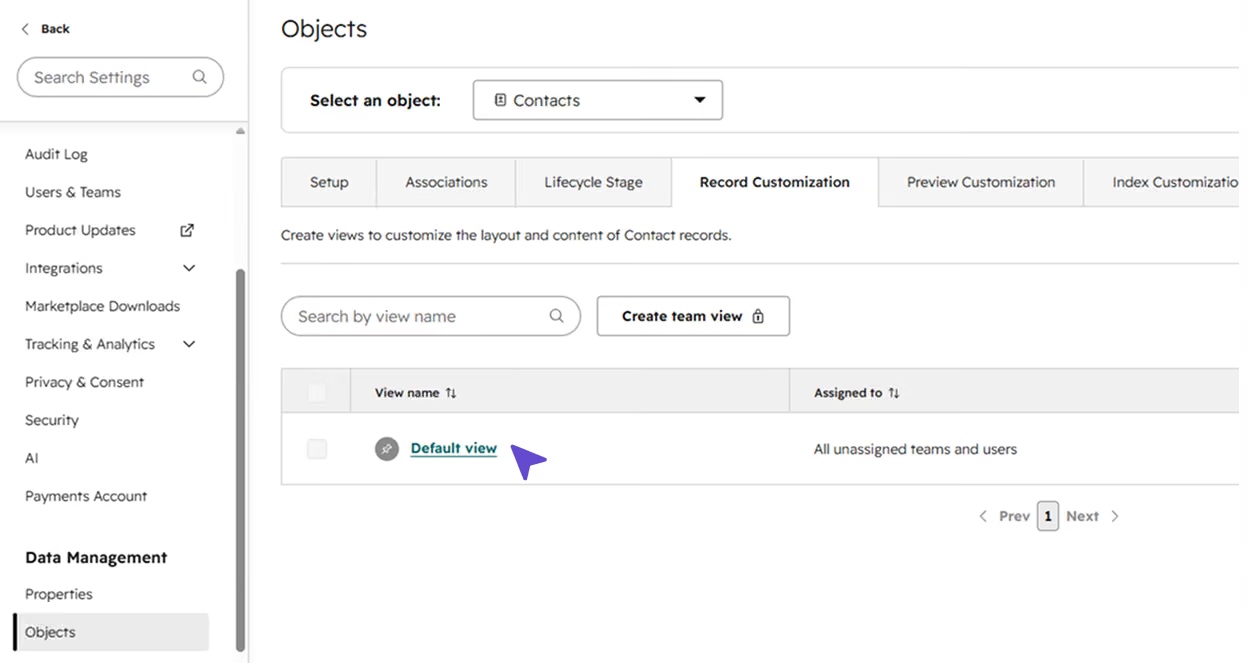
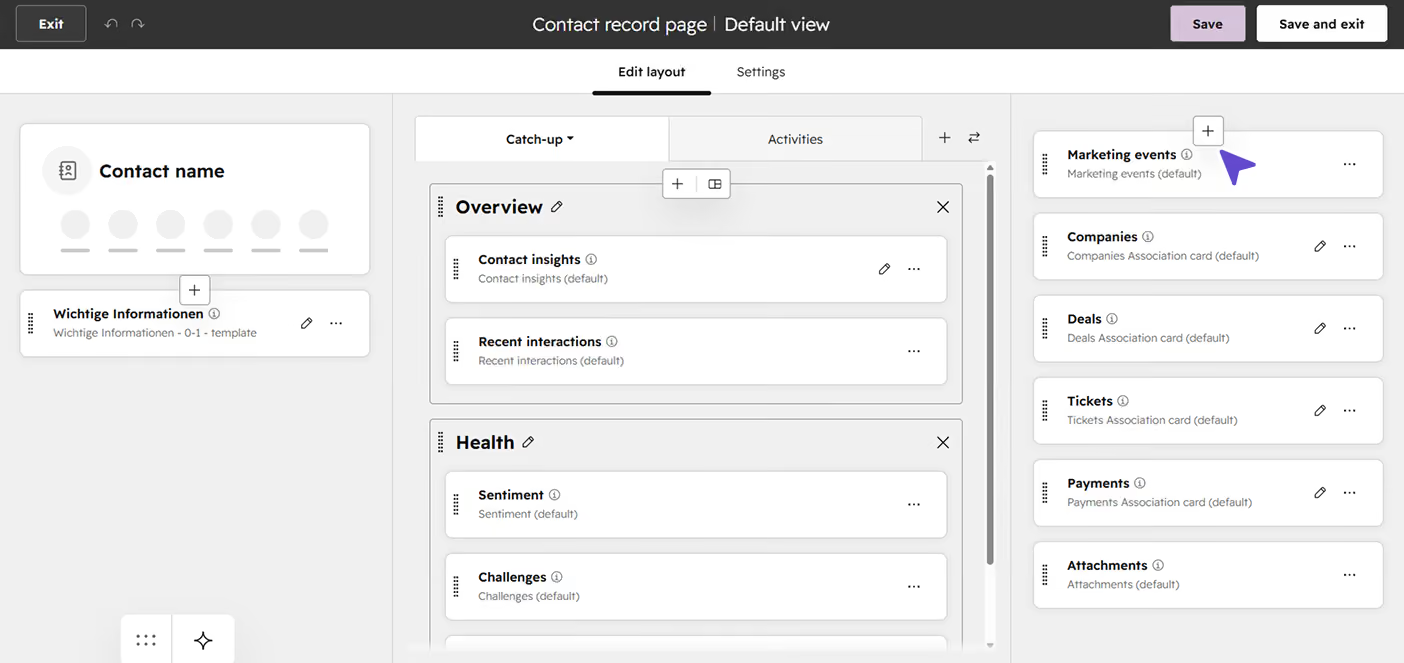
For a clearer overview of a contact's event participation, we recommend displaying Marketing Events as a card on the right-hand side of the contact record.
You can customise the default contact record layout in HubSpot by navigating to Settings (gear icon in the top right) → Data Management → Record Customisation. There, you can configure the contact record view to display the Marketing Events card.
Personal event links (individual participation links per contact) are transferred via a HubSpot Custom Object. This allows them to be reused in HubSpot, for example as a personalised link in marketing emails or as a trigger in workflows.
💡 Tip: Using the linked personal event link, you can set a personalised call-to-action in HubSpot emails or build workflows based on attendance status.
For the transfer of personal links, Oniva creates custom objects in HubSpot labelled "Oniva Participant". This object is created as soon as a booking is made. This allows, for example, booking confirmations to be triggered via automated emails from HubSpot, or other workflows to be set off. Please note that currently only automated marketing emails (e.g. triggered by a workflow) are supported by HubSpot.
The connection to HubSpot could not be established. Make sure your access token includes the scopes required for your use case (see Step 1). You can check and add these in HubSpot under Settings → Integrations → Private Apps → your app → Scopes.
Make sure the app connection is activated at both workspace and event level (Step 3).
Account import uses the same HubSpot connection as contact import. Make sure HubSpot is connected at account level with a valid access token (Step 2) and that the token includes the read scopes crm.lists.read, crm.objects.contacts.read and crm.schemas.contacts.read.
Check whether Marketing Events sync is activated in the app connection (Step 2) and whether the access token includes the scopes crm.objects.marketing_events.read, crm.objects.marketing_events.write and crm.objects.contacts.write. Transfers only occur from new bookings or status changes onwards – participants recorded before activation are not transferred retroactively.
Custom Objects require a HubSpot Enterprise plan. Also check whether the Custom Objects function is activated and whether the token includes the custom object scopes (crm.schemas.custom.*, crm.objects.custom.*).
If you are using a rotating token, it has most likely been rotated. Update the token in Oniva under App connections. For an uninterrupted connection, we recommend using a static token.
Discover exciting articles about creating unforgettable events.